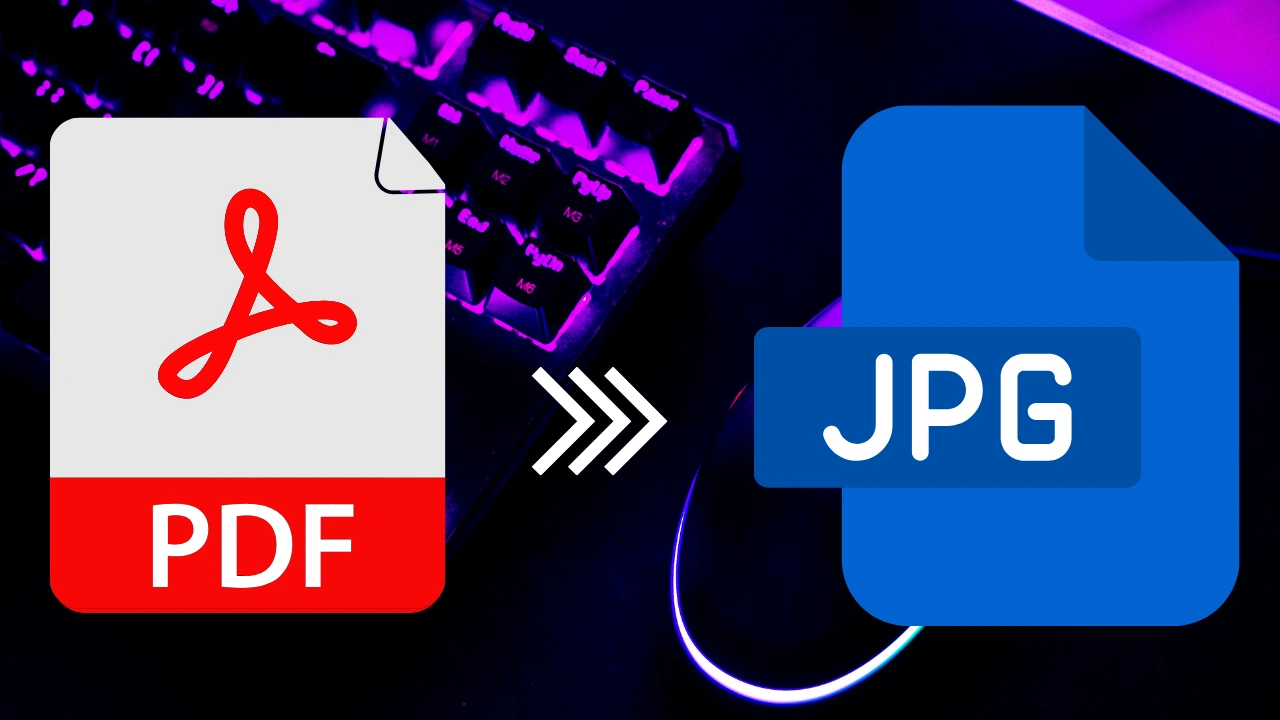
You have a PDF. You need a JPG. It sounds like a one-click problem, but anyone who has tried screenshotting a PDF page knows the result: blurry text, washed-out colors, and a file you are embarrassed to share.
The good news is that converting a PDF to JPG does not require expensive software, a subscription, or even an account. Our free online PDF to JPG converter handles it in seconds, at full quality, with no limits. Whether you are a freelancer pulling a logo out of a client brief, a student submitting a single page from a research paper, or someone who just needs to convert a PDF to a picture for a quick upload, this guide walks you through everything.
Table of Contents
What Does Converting PDF to JPG Actually Mean?
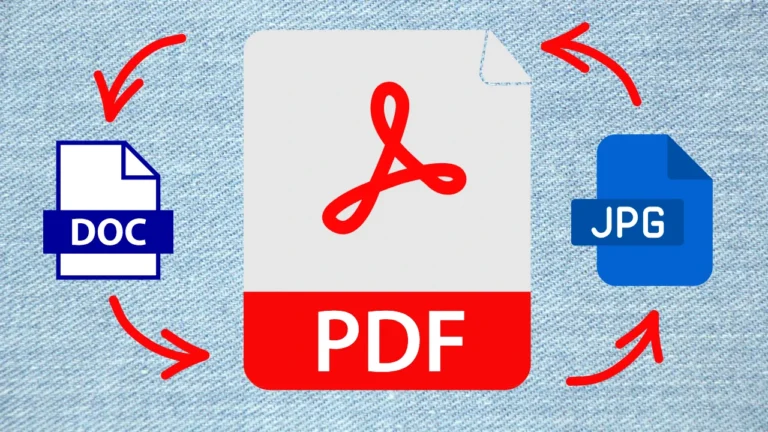
A PDF (Portable Document Format) is essentially a container. It holds text, vector graphics, embedded images, and fonts all packed into one file. The format was originally developed by Adobe to ensure consistent document sharing across all devices. A JPG is a flat image, great for sharing, uploading, and displaying on any device or platform.
When you convert a PDF to JPG, each page gets rendered as a standalone image file. The text, layout, and graphics are all captured exactly as they appear in the document. The page is no longer editable as a document; it becomes a picture of that document.
This matters in more situations than you might expect. A real estate agent sending a floor plan to a client who has no PDF reader. A designer dropping a brochure page into a PowerPoint deck. A photographer whose print lab only accepts JPG files. The need to convert a PDF to a picture comes up constantly, and the quality of the result depends almost entirely on the tool you use.
What Most Online Converters Get Wrong
A lot of PDF to JPG online tools look fine on the surface, then disappoint you the moment you try them. Here is what you typically run into:
Some tools cap your file size at 5MB or 15MB, which is useless if your PDF is a high-resolution catalog or a multi-page brochure. Others force you to create an account just to download your file. A few quietly watermark your output on the free tier. And almost all of them throttle quality by defaulting to 72 DPI output, which looks acceptable on screen and terrible everywhere else.
Some well-known names in this space, like ILovePDF and Smallpdf, are decent tools. But both have meaningful restrictions on their free plans: file size limits, hourly conversion caps, and mandatory sign-ups for anything beyond basic use. Adobe Acrobat gives you real quality control but costs money every month.
There is a better option.
The Converter That Actually Works: Free, Unlimited, No Sign-Up
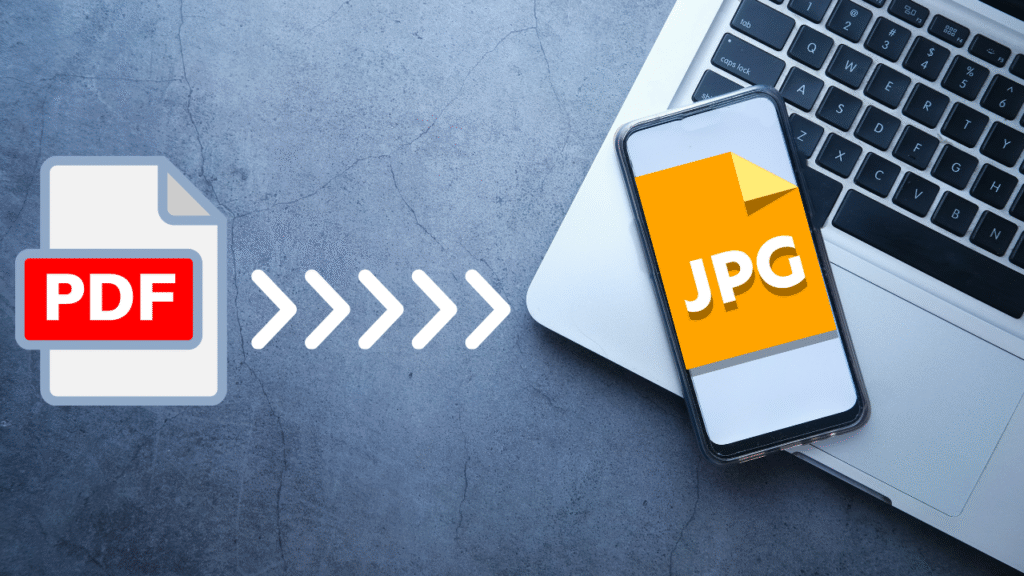
Our PDF to JPG converter at was built to remove every one of those frustrations.
Here is what you get:
- Free. No trial period, no hidden upgrade wall.
- Unlimited. Convert as many files as you want, as large as you need.
- High quality. Output is rendered at high resolution so text stays sharp and images stay crisp.
- No account required. Upload, convert, download. That is it.
- Fast. Most conversions finish in under 10 seconds.
I ran a 40-page product catalog through it and had all 40 JPG files downloaded in under a minute. The text was clean, the images were sharp, and there was no compression artifacting on the fine print. That is the kind of result that usually requires a paid tool.
Step-by-Step: How to Convert PDF to JPG with Our Tool
No guesswork needed. Here is exactly how it works:
| Step | What to Do |
|---|---|
| 1. Open the converter | Go to PDF to JPG Tool |
| 2. Upload your PDF | Drag and drop your file onto the page, or click to browse |
| 3. Choose your output | Select full-page conversion or extract embedded images only |
| 4. Convert | Hit the Convert button and wait a few seconds |
| 5. Download | Download your JPG files individually or as a ZIP |
That is the full process. No email confirmation, no waiting for a verification link, no surprise “upgrade to download” message halfway through.
One tip: if you only need specific pages, you can select a page range before converting. No need to download a 30-image ZIP when you only needed page 5.
Common Problems When You Convert PDF to JPG (and How to Fix Them)
Even with a good tool, a few things can trip people up.
The Output Looks Blurry
This is almost always a resolution issue with whatever tool you used before. Most free converters default to 72 DPI, which is screen resolution only. Our converter outputs at high resolution by default, so this is rarely a problem when you use it. If you are seeing blur, make sure you are not resizing the image after downloading.
The PDF Is a Scanned Document
If your PDF was created by scanning a paper document, it is already a rasterized image wrapped inside a PDF. Converting it to JPG just re-compresses what is already there. The output quality is limited by the original scan. In this case, no converter can sharpen what was never sharp to begin with.
Colors Look Different in the Output
Some PDFs use CMYK color (designed for professional printing). JPG uses sRGB. When a converter does not handle this properly, colors shift. Our tool handles the color space conversion correctly, so what you see in the PDF is what you get in the JPG.
The File Is Too Big to Upload Elsewhere
If your output JPG files are very large, you can compress them after conversion using a standard image editor or an online image compressor. This is separate from the PDF to JPG step and gives you control over the final file size without sacrificing the quality of the initial conversion.
How to Get PDF to JPG High Quality Results Every Time
Getting genuinely sharp output comes down to a few habits.
Use a high-resolution source PDF. A low-res PDF will never produce a sharp JPG regardless of the converter. If you have access to the original file (a Word document, an InDesign file, a Photoshop export), generate a high-res PDF from there first, then convert.
Do not screenshot. It is tempting to just press Print Screen and crop, but the result is always lower quality than a proper conversion. A real converter renders the PDF at its native resolution. A screenshot captures whatever your monitor happens to be showing.
Match resolution to your use case. For social media or web use, standard high-resolution output is more than enough. For printing, you want the source PDF to be at least 300 DPI. Our converter preserves whatever resolution is in the source document.
Convert the whole page, not just embedded images. If your PDF has text and graphics combined (like a flyer or a report page), use the full-page conversion option. The “extract images” option only pulls out images that are embedded as separate objects inside the PDF, which is different from converting the whole visual layout of the page.
Who Uses a PDF to JPG Converter and Why
Real people, real situations.
A marketing coordinator needs to post a one-page promotion flyer on Instagram. The designer only delivered a PDF. A quick conversion and it is ready to upload.
A student submitting an assignment gets told the portal only accepts image files. The research paper is in PDF. Two minutes later, every page is a JPG.
A small business owner wants to use a product image that is trapped inside a supplier’s PDF catalog. Rather than asking the supplier for the original, they extract it directly.
A freelance writer keeps their clips as PDFs. A potential client asks for samples in a format they can preview in their email. JPG files land in the inbox and display instantly, no PDF reader needed.
The situations are different. The solution is the same.
Give It a Try Right Now
Converting a PDF to JPG does not need to be complicated, expensive, or slow. You do not need software, a subscription, or an account.
Head to the Tool , upload your file, and have your JPG images in under a minute. No limits, no watermarks, no strings attached.
Frequently Asked Questions
Q1: Is the PDF to JPG converter completely free? A1: Yes. There is no cost, no trial period, and no premium tier required to get full-quality output. The converter is free with no conversion limits.
Q2: Do I need to create an account to use it? A2: No account needed. Just go to the page, upload your PDF, and download your JPG files. Nothing to sign up for.
Q3: How do I convert a PDF to JPG high quality without blurry results? A3: Our converter outputs at high resolution by default. The main thing that affects sharpness is the quality of the source PDF itself. A high-res PDF produces a sharp JPG; a low-res or scanned PDF is limited by the original scan quality.
Q4: Can I convert multiple pages at once? A4: Yes. Upload a multi-page PDF and all pages are converted to individual JPG files. You can download them all at once as a ZIP file.
Q5: Is my uploaded PDF kept private? A5: Your file is processed on our servers for conversion and then deleted automatically. It is not stored, shared, or used for any other purpose.